Download Language Freeware

Byki Free Language Software Downloads Logo

Byki is free software for learning over 70 languages. It's available for all the most popular languages as well as many minority and less-taught languages. Try it now!

You Make Language Happen

Free Language Newsletter

Discover the magic of learning languages.

Subscribe to the Free Language Letter.

Your Name:

Your Email:

Ask Questions, Get Answers

Ask Language Questions

Ask anything about learning and teaching languages! Share your language questions.

View questions that have been asked and answered. Together we are creating a collective knowledge base for effective language learning and teaching. You can help!

learn languages online

Learning Russian .net Logo

Summary

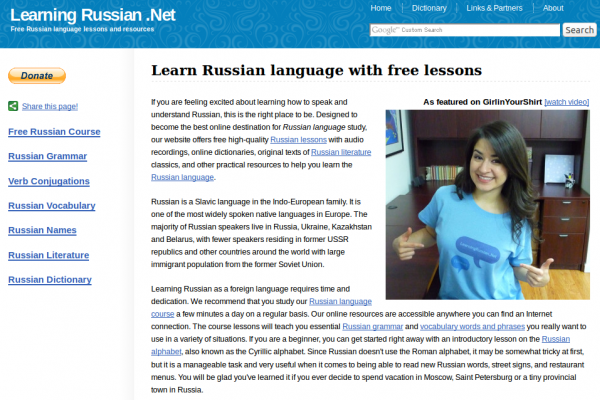
LearningRussian.Net is a good entry point for beginner Russian learners. The site provides clear lessons on the basics of the Russian language, including the alphabet, verb conjugations and aspects, case forms, pronouns, numerals, mood and more. There is also a number of introductory level lessons on meeting and greeting, introductions, fun and games, directions and congratulations - with more lessons being added regularly.

Of special note are their Russian-English dual-language texts available right through the site! Currently the beginning chapters of two novels are available in dual-text format: Anna Karenina by Lev Tolstoy and Notes from the Underground by Fyodor Dostoyevsky.

Audio is also being integrated into the site as this article goes to press, so expect more audio soon.

From Website

Learn Russian language with Free Lessons

If you are feeling excited about learning how to speak and understand Russian, this is the right place to be. Designed to become the best online destination for Russian language study, our website offers free high-quality Russian lessons with audio recordings, online dictionaries, original texts of Russian literature classics, and other practical resources to help you learn the Russian language. Our site is absolutely free for you to use and we plan to keep running it as a totally free service for everyone.

Anna Karenina Russian-English Dual-Language Text

Visit LearningRussian.Net

Your rating: None Average: 3.4 (10 votes)

Free Italian Flashcards and Sentence Manager

Summary

Italian-Flashcards.com is a fast-loading, useful site for Italian learners to manage and practice vocabulary lists (words and sentences). There are many existing word and sentence lists created by other users that you can snag and use right away. You can also create your own lists and sentences on-the-fly and test yourself until you know them all. As a result, this resource works for Italian students of all levels, beginner to advanced. The self-testing is done via built-in flashcard software that you control.

The website has an integrated dictionary that gives explanations of individual terms and includes examples of how these are used in real sentences. In addition, when you view a sentence, you can scroll over the Italian words and view annotations. NB: You can copy and paste any Italian text you want into the site's Text Analyzer and it provides you with what you see below (see grey scroll-over pop-up in image for annotation). Words that are not in the system with be displayed in grey, such as the word "Mike" below.

Italian Annotation of Sentences with Text Analyzer

Something you might find useful is the site's Sentence of the Day email. This sends a different sentence every day complete with a translation of the sentence.

If you upgrade to a premuim membership (~$5/month) you can also hear audio for the sentence. In fact, the only thing you cannot do without a membership is hear the audio on the site.

Bravo Oliver for this excellent site and keep up the great work!

From Website

Introduction

Our first flashcard website started in 2005. A lot of time has been invested to design an efficient system which enables you to learn new words in the shortest time possible. Make sure to read this introduction carefully so you understand how the system works. Once you know how this website works and you use it regularly it will become an important tool to learn Italian. Ideally make time each day for 2 or 3 sessions a day, each lasting about 10 - 15 minutes.

Once you have created your own account you can set up your own word list. There are basically two different modes on how to add new words to your word list. One is automatically and one is manually.

Automatically

If you choose "automatically" then the system will choose random words for you to practice. Within the Auto-Mode there are two different choices. The first is "completely random words" and the second is "frequent words first". Obviously if you are a beginner you should focus on those frequent words first, so if you chose the level "Complete Newbie", "Basic" or "Intermediate" the system will just do that. If you chose the level "Upper Intermediate" or "Advanced" completely random words will be added to your word list.

Manually

If you would like more control over which word you learn switch to the manually mode. In this mode you have to choose which word you will learn, not the system. There are a few ways to add words manually. The first is to use the search function in the navigation bar on the left-hand side. You can search for Italian or English words. On the result page every found word has an "Add Word" link next to it. Click it to add this word to your personal list. After you click it the link text will change to "Remove Word", so you can immediately remove the word from your list if you have added it by mistake.

The second way to add words manually is to click the link "Add new Words" in the navigation. This will show random words for you to add. They are sorted by frequency, the most common words will be at the top of this random list, while the rare words will be at the bottom of the list.

Finally you can add words manually by browsing through the "public word lists". These lists have been created by other users. These public lists normally have a common theme, like "animals", "computer terms", "fruits", etc. You can either pick some words of these public lists or copy the whole list.

You can also combine these methods, add words automatically but also occasionally add words manually.

Adding words automatically is the default setting. If you do not want to add words automatically you can change this in the settings.

Italian Flashcards Loop Image

The Loop

The main problem of learning new words is that over time word lists grow very big. This means that the learner feels overwhelmed and the time between word repetitions becomes too long. Thats where the Loop comes to the rescue.

The Loop consists of a subset of only 20 words out of your word list. This means you can concentrate on a few words only, until you have memorized them properly. To keep a flashcard in the loop click on the "Loop" button.

If you have become familiar with a new word which is in the Loop click on "1 day", "7 days", "30 days" etc. Which means that the word will be shown only after the indicated time has passed. If you know a word very well click on "30 Days" or "3 Months" so the word will be shown only after a long time. After the indicated time has passed the word will be put into the Queue.

Once you remove a word from the Loop another one will be put in the Loop. The system will first check if there are any words in the "Queue". If the Queue is empty and you are in Auto-Mode the system will choose a new word for you and add it to your word list and into the Loop. If you are in the "manual mode" the system will tell you that you need to add more words in order to continue.

If you click "Remove Word" then the word will be removed from your word list. "Permanently Block" will do the same except that it will also prevent the word from coming back in the "Automatic Mode" where the system chooses words for you. By default there are 20 words in the loop. You can change the number of words in the loop in the settings.

Word Lists

If the Loop system sounds too complicated to you, then you can also set up simple word lists. To do this click on "[Manage Lists]" in the navigation. Then click on "[Add List]" to create a new list. If you want to share this word list with other users select the box "Public List". If you want to immediately add new words to this list select "Also Activate". You can create as many lists as you want. In the navigation bar you can always see which list is active at the moment. Words will be added to the currently active list. To go back to the master list (which uses the loop), click on "[Manage Lists]" and the "[Leave List Mode]".

Visit Italian-Flashcards.com

Your rating: None Average: 4.3 (10 votes)

BBC Spanish Mi Vida Loca Interactive Drama/Mystery/Thriller Logo

Summary

BBC Spanish's new interactive mystery video course Mi Vida Loca sets a new standard for the direction that BBC Languages is taking with their free, online language learning materials and resources (courses, lessons, phrase books, etc).

Mi Vida Loca is an online interactive suspense thriller internet tv series (call it a soap opera - or telenovela - if you prefer!) for total beginners that takes users on an adventure from the UK through Spain. Along the journey, Spanish is acquired by the interactive "viewer" in digestible tidbits. The course is adaptable depending on whether you are male or female, since Spanish language has gender.

To add to the instructional quality of the series, BBC Spanish has provided a User Guide for students as well as a handy Teacher Guide and Syllabus for instructors/educators.

All in all, this is a more interesting approach to totally beginner Spanish than many of the other choices out there. And the fact that you feel like you are moving along the whole time by virtue of the way it is filmed and presented can help to keep those short attention spans interested! The Spanish guitar music also helps recreate the setting.

In the prolific words of the BBC: "Real Spanish, real drama."

Watch the Trailer

From BBC Spanish

Brand new Spanish drama. Get hooked. Learn the language. All episodes now live!

Visit BBC Spanish's "Mi Vida Loca" Interactive Mystery Video Course.

Your rating: None Average: 3.6 (24 votes)

Verbix WikiVerb Logo

Summary

Verbix is "an independent non-profit organization that aims to promote and protect linguistic diversity." The tools on their site "contain verb conjugations for hundreds of languages, ranging from national and international languages to regional and even extinct languages."

There are four main things to bring your attention to in this article:

1) WebVerbix, a great free online verb conjugator for over eighty languages.

2) WikiVerb, a wiki site dedicated to languages, verbs, and verb conjugation.

3) FreeVerbix, a freeware version of the Verbix Windows software which bumps the number of available languages to above one hundred.

4) The Verbix website, where all three of the above and more (including the $40 paid version of Verbix 2008 for Windows) are available. Your purchase will support the non-profit group and expand the Verbix non-profit organization and web presence.

Also of import is the list of supported languages for the above-mentioned free and commercial products and online services.

FreeVerbix Windows Software Freeware Screenshot

The free Verbix stuff (WebVerbix, FreeVerbix and WikiVerb) provides plenty to work with for language learners and educators alike. The free online version works great for conjugating an enormous amount of verbs instantly.

From Website

UNESCO, United Nations Educational, Scientific and Cultural Organization. Verbix is an independent non-profit organization that aims to promote and protect linguistic diversity [UNESCO Observatory: Multilingualism]. This site contains verb conjugations for hundreds of languages, ranging from national and international languages to regional and even extinct languages.

FreeVerbix 7.3 is a universal Verb Conjugator that shows verb inflections in 100+ languages. It is based on Verbix language extension technology, so after installation of Verbix you can easily install any language extension to add more languages in Verbix.

WebVerbix is a free on-line verb conjugator. It contains a subset of Verbix for Windows features.

WikiVerb is a site dedicated to languages, verbs, and verb conjugation. It's not going to be a copy of information available in WikiPedia, but it will focus in verb conjugation. It won't replace www.verbix.com either, but it includes information and languages that are not available there.

Visit Verbix.com

Your rating: None Average: 3.5 (19 votes)

Free French Flashcards and Sentence Manager

Summary

French-Flashcards.com is a fast-loading, useful site for French learners to manage and practice vocabulary lists (words and sentences). There are many existing word and sentence lists created by other users that you can snag and use right away. You can also create your own lists and sentences on-the-fly and test yourself until you know them all. As a result, this resource works for French students of all levels, beginner to advanced. The self-testing is done via built-in flashcard software that you control.

The website has an integrated dictionary that gives explanations of individual terms and includes examples of how these are used in real sentences. In addition, when you view a sentence, you can scroll over the French words and view annotations. NB: You can copy and paste any French text you want into the site's Text Analyzer and it provides you with what you see below (see grey scroll-over pop-up in image for annotation). Words that are not in the system with be displayed in grey, such as the word "Mike" below.

French Annotation of Sentences with Text Analyzer

Something you might find useful is the site's Sentence of the Day email. This sends a different sentence every day complete with a translation of the sentence.

If you upgrade to a premuim membership (~$5/month) you can also hear audio for the sentence. In fact, the only thing you cannot do without a membership is hear the audio on the site.

Bravo Oliver for this excellent site and keep up the great work!

From Website

Introduction

Our first flashcard website started in 2005. A lot of time has been invested to design an efficient system which enables you to learn new words in the shortest time possible. Make sure to read this introduction carefully so you understand how the system works. Once you know how this website works and you use it regularly it will become an important tool to learn French. Ideally make time each day for 2 or 3 sessions a day, each lasting about 10 - 15 minutes.

Once you have created your own account you can set up your own word list. There are basically two different modes on how to add new words to your word list. One is automatically and one is manually.

Automatically

If you choose "automatically" then the system will choose random words for you to practice. Within the Auto-Mode there are two different choices. The first is "completely random words" and the second is "frequent words first". Obviously if you are a beginner you should focus on those frequent words first, so if you chose the level "Complete Newbie", "Basic" or "Intermediate" the system will just do that. If you chose the level "Upper Intermediate" or "Advanced" completely random words will be added to your word list.

Manually

If you would like more control over which word you learn switch to the manually mode. In this mode you have to choose which word you will learn, not the system. There are a few ways to add words manually. The first is to use the search function in the navigation bar on the left-hand side. You can search for French or English words. On the result page every found word has an "Add Word" link next to it. Click it to add this word to your personal list. After you click it the link text will change to "Remove Word", so you can immediately remove the word from your list if you have added it by mistake.

The second way to add words manually is to click the link "Add new Words" in the navigation. This will show random words for you to add. They are sorted by frequency, the most common words will be at the top of this random list, while the rare words will be at the bottom of the list.

Finally you can add words manually by browsing through the "public word lists". These lists have been created by other users. These public lists normally have a common theme, like "animals", "computer terms", "fruits", etc. You can either pick some words of these public lists or copy the whole list.

You can also combine these methods, add words automatically but also occasionally add words manually.

Adding words automatically is the default setting. If you do not want to add words automatically you can change this in the settings.

French Flashcards Loop Image

The Loop

The main problem of learning new words is that over time word lists grow very big. This means that the learner feels overwhelmed and the time between word repetitions becomes too long. Thats where the Loop comes to the rescue.

The Loop consists of a subset of only 20 words out of your word list. This means you can concentrate on a few words only, until you have memorized them properly. To keep a flashcard in the loop click on the "Loop" button.

If you have become familiar with a new word which is in the Loop click on "1 day", "7 days", "30 days" etc. Which means that the word will be shown only after the indicated time has passed. If you know a word very well click on "30 Days" or "3 Months" so the word will be shown only after a long time. After the indicated time has passed the word will be put into the Queue.

Once you remove a word from the Loop another one will be put in the Loop. The system will first check if there are any words in the "Queue". If the Queue is empty and you are in Auto-Mode the system will choose a new word for you and add it to your word list and into the Loop. If you are in the "manual mode" the system will tell you that you need to add more words in order to continue.

If you click "Remove Word" then the word will be removed from your word list. "Permanently Block" will do the same except that it will also prevent the word from coming back in the "Automatic Mode" where the system chooses words for you. By default there are 20 words in the loop. You can change the number of words in the loop in the settings.

Word Lists

If the Loop system sounds too complicated to you, then you can also set up simple word lists. To do this click on "[Manage Lists]" in the navigation. Then click on "[Add List]" to create a new list. If you want to share this word list with other users select the box "Public List". If you want to immediately add new words to this list select "Also Activate". You can create as many lists as you want. In the navigation bar you can always see which list is active at the moment. Words will be added to the currently active list. To go back to the master list (which uses the loop), click on "[Manage Lists]" and the "[Leave List Mode]".

Visit French-Flashcards.com

Your rating: None Average: 4.4 (7 votes)